User Guide
Getting Started
CRM Phone integrates your phone system directly into HubSpot. You can make and receive calls without leaving your CRM.
Requirements
- HubSpot account with CRM Phone installed
- Modern web browser (Chrome, Edge, Firefox)
- Microphone and speakers/headset
- Allow pop-ups for HubSpot
Your Login Credentials
After signup, you'll receive a welcome email with your login credentials. Here's what to look for:
Hi [Your Name],
Your CRM Phone account is ready! Here are your login credentials:
Phone Line Portal (for your personal settings)
URL: account.crmphone.app
Login: [Your Phone Number]
Password: [Your Password]
Use these credentials to change your password, view call history, or download recordings.
Didn't receive your email? Check your spam folder. If still missing, contact support@crmphone.app or visit crmphone.app/login for help.
Making Outbound Calls
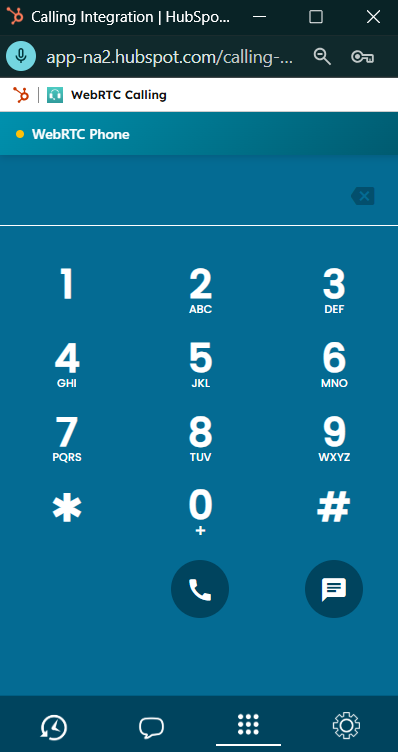
Click-to-Dial
- Navigate to any Contact, Company, or Deal in HubSpot
- Click the phone icon next to any phone number
- A calling window will pop up
- The call connects automatically through your company phone system
From Contact Record
- Open a contact's profile page
- Click the Call button in the left sidebar
- Select the phone number to dial
- Wait for the call to connect
Receiving Inbound Calls
When someone calls your company number:
- The calling window will appear with the incoming call
- Click Answer to accept the call
- If the caller is a known contact, HubSpot may automatically open their record
- The call is logged to the contact's timeline
Caller ID
- Known contacts display their name and company
- Unknown numbers show just the phone number
- Your admin can configure auto-navigation to contact records
Unknown Callers - One-Click Contact Creation
When you receive a call from a number not in your CRM:
- An "Unknown caller" notice appears with the phone number
- Click the "+ Add to HubSpot" button
- The contact is automatically created with the phone number pre-filled
- HubSpot navigates to the new contact record
- When you log the call, it automatically associates with the new contact

What happens when you click the button: Contact is created instantly via API (no manual data entry). HubSpot opens the new contact's profile page. You can add name, email, and other details while on the call. Call logging will link to this contact.
Note: If the phone number already exists in HubSpot, clicking the button will navigate to the existing contact instead of creating a duplicate.
During a Call
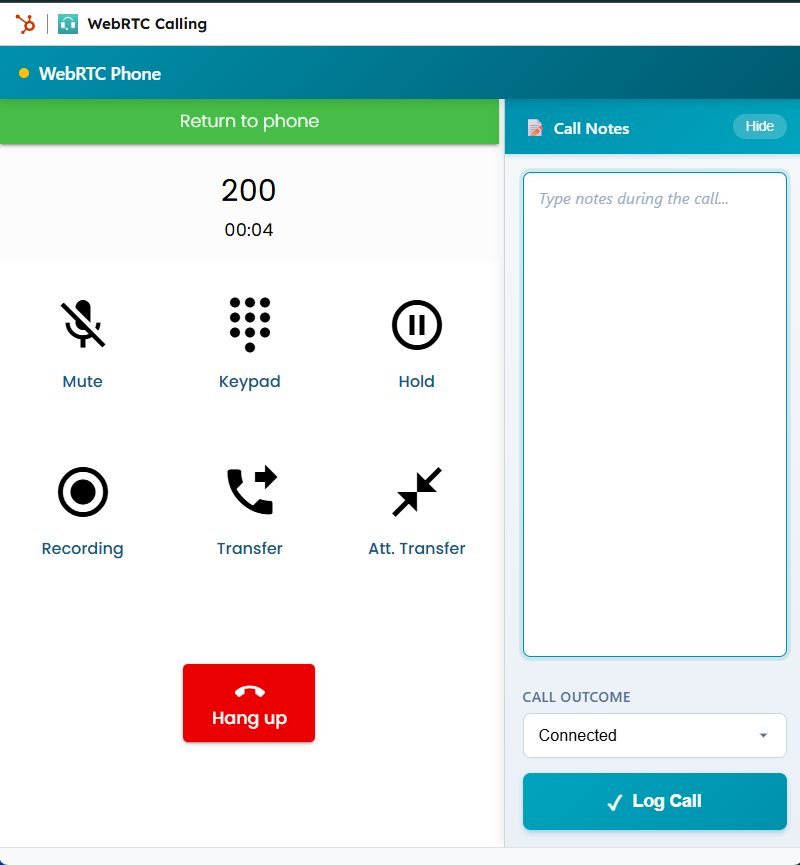
Call Controls
| Button | Action |
|---|---|
| Mute | Mute your microphone |
| Hold | Place caller on hold |
| Keypad | Open dial pad for menu navigation |
| Transfer | Transfer the call to another number |
| Record | Start/stop call recording (if enabled) |
| Music on Hold | Play hold music to the caller |
| End Call | Hang up |
Transfer Calls
To transfer a call to another person:
- Click the Transfer button during an active call
- Enter the phone number or extension to transfer to
- Choose Blind Transfer (immediate) or Attended Transfer (talk first)
- The call is handed off to the other party
Call Recording
If your account has call recording enabled:
- Click the Record button to start recording
- The button will indicate recording is active
- Click again to stop recording
- Recordings are stored in your company's phone system
Don't see the Record button? Contact your administrator to enable call recording for your account.
Music on Hold
When you need to step away briefly:
- Click the Music on Hold button
- The caller hears hold music instead of silence
- Click again to return to the call
Taking Notes
When a call connects, a notes panel appears:
- Type notes in the text area during the call
- Notes are saved when you log the call
- Notes appear in the contact's timeline
After the Call
Logging the Call
When the call ends:
- Select a Call Outcome:
- Connected - Spoke with the contact
- Left Voicemail - Left a message
- No Answer - No answer, no voicemail
- Wrong Number - Incorrect number
- Busy - Line was busy
- Review your notes
- Click Log Call
Automatic Logging
- Calls are automatically logged to the contact's timeline
- Duration is recorded automatically
- If you close the window without logging, it logs as "Connected"
Follow-up Tasks
When a call results in "Left Voicemail" or "No Answer", you can create a follow-up task:
- Select Left Voicemail or No Answer as the outcome
- Click the orange Create Follow-up Task button
- A HubSpot task is automatically created for tomorrow at 9am
- The task includes the phone number and your call notes
Task Details: Tasks are linked to the contact and appear in their activity timeline. They're set as "CALL" type tasks so you can filter them easily.
Deal Integration
Link your calls directly to HubSpot deals for better sales tracking and reporting.
How It Works
When you make or receive a call with a known contact, the system automatically checks if they have any associated deals:
- Deals appear in the contact banner at the top of the call window
- A deal selector dropdown appears in the notes panel
- If the contact has only one deal, it's auto-selected
Linking Calls to Deals
- During or after a call, look for the "Link to Deal" dropdown in the notes panel
- Select the appropriate deal from the list (shows deal name and amount)
- Click the arrow button next to the dropdown to open the deal in HubSpot
- When you click Log Call, the call is associated with both the contact and the selected deal
Deal Information Displayed: Contact Banner shows the primary deal name with a money icon. Deal Selector lists all deals with name and dollar amount. Quick Access lets you jump to any deal page directly from the call window.
No Deals Showing? If you don't see the deal selector, the contact may not have any associated deals in HubSpot. Create a deal and associate it with the contact first.
Call History
View call history in several places:
Quick View (In Call Window)
The notes panel shows your last 5 calls at the bottom, helping you see recent activity at a glance:
- Direction icons - Inbound or outbound indicator
- Contact name - Who you spoke with
- Time ago - How recent the call was
- Duration - How long the call lasted
History persists between sessions. Click Clear to reset.
Contact Timeline
- Open any contact record
- Scroll down to see all logged calls
- Click a call to see notes and details
Activity Feed
- Go to Contacts > Activity Feed
- Filter by "Calls" to see recent calls
Troubleshooting
Call Window Won't Open
Problem: Clicking a phone number does nothing
Solutions:
- Allow pop-ups for HubSpot in your browser
- Check if another call window is already open
- Refresh the page and try again
No Audio
Problem: Can't hear the caller or they can't hear you
Solutions:
- Check your microphone/speaker settings
- Ensure the correct audio devices are selected
- Try using a headset instead of speakers
- Check your browser has microphone permissions
Call Drops
Problem: Calls disconnect unexpectedly
Solutions:
- Check your internet connection
- Close other bandwidth-heavy applications
- Try a wired connection instead of WiFi
- Contact your IT department
Call Not Logging
Problem: Call doesn't appear in contact timeline
Solutions:
- Make sure you clicked "Log Call" after the call
- Verify you're connected to HubSpot (refresh the page)
- Check if the contact record exists
- Contact your administrator
Tips for Better Calls
Audio Quality
- Use a headset for best audio quality
- Find a quiet location for calls
- Close unnecessary browser tabs
- Use a wired internet connection when possible
Productivity
- Prepare by reviewing contact history before calling
- Take notes during the call, not after
- Select outcomes accurately for reporting
- Use click-to-dial from any phone number in HubSpot
Best Practices
- Always log calls with notes for team visibility
- Update contact info if you learn new details
- Create follow-up tasks for important callbacks
- Review call history before reaching out to contacts
- Link calls to deals to track sales activities
Visual Feedback
The calling interface provides helpful visual feedback:
- Toast notifications - Pop-up messages confirm when actions complete (call logged, contact created, task created)
- Loading spinners - Buttons show a spinner while processing
- Color indicators - Green for success, orange for warnings, red for errors
Keyboard Shortcuts
| Shortcut | Action |
|---|---|
| Esc | Close call window |
| M | Mute/unmute (during call) |
| Enter | Log call (after call ends) |
Getting Help
Common Questions
Q: Can I transfer calls?
A: Yes! Click the Transfer button during an active call. You can do a blind transfer (immediate) or attended transfer (talk to the recipient first).
Q: Can I record calls?
A: Yes, if your administrator has enabled call recording for your account. Look for the Record button during calls. If you don't see it, contact your administrator.
Q: Where are my call recordings?
A: Recordings are stored in your company's phone system. Contact your administrator for access.
Q: Why does my caller ID show a different number?
A: Your company's outbound caller ID is configured by your administrator. Contact them if you need it changed.
Q: Can I make international calls?
A: International calling depends on your company's phone plan. Contact your administrator.
Q: How do I link calls to deals?
A: When a contact has associated deals, a "Link to Deal" dropdown appears in the notes panel. Select a deal before clicking Log Call, and the call will be associated with both the contact and the deal.
Q: How do I create a follow-up task?
A: Select "Left Voicemail" or "No Answer" as the call outcome. An orange "Create Follow-up Task" button will appear. Click it to create a task due tomorrow at 9am, linked to the contact.
Q: Where can I see my recent call history?
A: Your last 5 calls appear at the bottom of the notes panel during calls. For complete history, check the contact's timeline in HubSpot or use HubSpot's call reports.
Support
For technical issues, contact support@crmphone.app or your company's HubSpot administrator.